
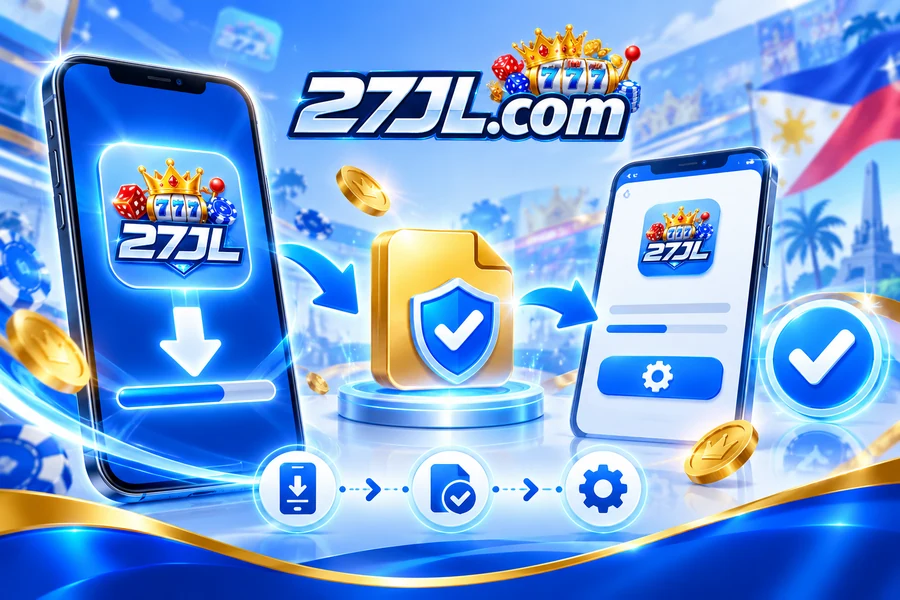
Verify the source before opening a file
A download is more than a button. The useful question is whether the file came from the route you intended, completed normally and matches what your device is prepared to open. If the source is unclear, do not weaken device protection just to force the file to run.
Avoid relying on old file-sharing links or screenshots that cannot show the current destination.
A partial or interrupted file may not open even when the filename looks normal.
Read permission and security messages before accepting them. A warning should be understood rather than dismissed automatically.
If you cannot establish where a file came from, the safer action is to stop and verify the route again.
When a file does not open
- Check available storage and whether the download finished.
- Confirm the file type is one your device can use.
- Look for a system or security message explaining what was blocked.
- Restart from the current access page if the file came from an old link.
- Do not disable broad security protections for an unknown file.
App facts that are not verified here
This website does not currently have a verified app version, build number, file size, minimum Android version or app-store listing to publish. The site therefore does not state any of those as facts. If the destination displays them, compare the live value there at the time you download.
Identify the source before the file
A filename can be copied, so the place a file came from matters as much as its name. Start from the access route you intended to use and confirm that the download was initiated by that destination. Be cautious with files sent through unsolicited messages, shortened links or pages that look unrelated to the service you expected. If the source is unclear, stop before changing device settings to make the file run.
Confirm that the download actually finished
An interrupted download can leave a file that exists on the device but cannot open correctly. Check the browser's download status and whether the file appears complete before retrying installation. If the connection changed during the download, start again from a verified source rather than using a partial copy. This site does not publish a file size because no current size has been verified.
Read the operating system warning
Android, browsers and security tools may explain why a file is blocked. Read the warning instead of immediately disabling protection. The message may concern an unknown source, an unsupported file type, a damaged download or another device policy. A warning is useful information. If you cannot explain why the file should be trusted, return to source verification rather than forcing the installation.
Check storage and device state
A device with very little free storage can fail during download, extraction or installation. Close unused apps, check available storage and restart the device if it has been running for a long time and behaviour is inconsistent. Do not delete important personal data simply to make room for an unverified file. If storage is the only problem, solve that first and then repeat the download from the verified route.
Grant only permissions you understand
Permissions should relate to a real feature. If a downloaded app asks for access that seems unrelated to what you are trying to do, read the reason before accepting it. This page does not provide a fixed permission list because app behaviour has not been independently verified. Device settings should not be changed broadly just because one installation asks for more access.
Do not confuse a website shortcut with an installed app
Some mobile experiences open in the browser even when they look app-like, while other files install a separate application. Check what your device actually created: a browser tab, home-screen shortcut or installed application. The App page is the better place to compare those access methods. The Download page stays focused on the file and installation process.
Handle updates as a new verification event
An update should not automatically inherit trust from an older file if the source has changed. Confirm where the new package came from and read any device warning again. Do not assume a version number shown in a message is current. Because no verified version is supplied for publication on this website, this site does not publish one as a permanent fact.
When not to continue
Stop if the file source cannot be identified, the page asks you to disable several protections without a clear reason, the download is delivered by an unexpected contact, or the device reports a warning you cannot explain. A successful installation is not more important than understanding what you are installing. When the file route remains unclear, use App or Support for a different access path.
After installation, check what actually changed
If an installation completes, confirm that the expected app or shortcut appeared and that no unrelated permission or background behaviour was introduced. Do not assume that completion alone proves the source was correct. If the device behaves unexpectedly after installing a file, stop using that file and review the source and device security information before entering account details.
Delete abandoned downloads you no longer need
If you decide not to install a file, remove unnecessary copies so they are not opened later by mistake. Keep only files whose source and purpose you understand.